가이드 · 유튜브

Suno 노래를 YouTube에 적합한 뮤직 비디오로 바꾸는 ��법: 단계별

약 5분 만에 Suno 트랙에서 YouTube용 뮤직 비디오로 이동할 수 있습니다. Suno를 열고, Suno Board 아이콘을 클릭하고, 비디오 섹션을 열고, 노래를 작업 공간에 놓고, 영상, 가사 또는 시각화 장치를 추가하고, YouTube 설명을 생성하고, 1920×1080 MP4를 다운로드하십시오. 비디오 편집기가 필요하지 않습니다.

Install Suno Board — free to install
Suno Board landscape video canvas for a YouTube-ready Suno music video

Best for

Suno creators starting or growing a YouTube channel
AI music creators uploading their first real music video
Creators building compilation or album-style videos
Anyone who wants auto-generated YouTube chapters and descriptions
Creators who want automatic YouTube chapters from their tracklist
Musicians experimenting with AI visuals and audio together
Suno Board

에 가장 적합 Suno Board 팀 작성

Suno Board는 Suno 제작자 커뮤니티를 위해 특별히 제작되었습니다. 이 가이드는 Suno Board Chrome 확장 프로그램 내부의 실제 비디오 다운로드 워크플로를 반영합니다. 제작자가 YouTube용 Suno 노래를 준비하기 위해 매일 사용하는 비디오 작업 공간에 대해 테스트되었습니다.

YouTube에서 뮤직 비디오가 오디오 전용보다 성능이 뛰어난 이유

YouTube에는 동영상 파일이 필요합니다. 오디오만 업로드할 수는 없습니다. 표준 해결 방법은 오디오를 정적 표지 이미지와 페어링하는 것입니다. 그것은 효과가 있지만 정적 이미지는 시청자에게 아무것도 볼 수 없게 합니다. 비트에 반응하는 비주얼라이저, 화면에 나타나는 가사, 프레임을 채우는 AI 생성 아트워크는 시청자가 런타임 내내 머물 이유를 제공합니다.

시청 시간과 시청자 보유는 YouTube에서 동영상의 실적을 나타내는 주요 신호입니다. 동작, 가사, 시각적 구조가 있는 동영상은 정지 이미지보다 시청자가 계속해서 시청해야 할 이유를 더 많이 제공합니다. Suno Board는 훌륭한 Suno 트랙을 갖는 것과 볼만한 가치가 있는 YouTube 비디오를 갖는 것 사이의 격차를 줄여줍니다.

Suno Board를 사용한 오디오 업로드와 뮤직 비디오

기능 오디오 + 정적 이미지 Suno 보드와 함께
업로드 형식 오디오 파일 + 정적 이미지 MP4 업로드 준비 ���료
재생 중 시각적 움직임 정적 이미지만 움직이는 시각화 도구 및/또는 가사
오디오 반응형 시각화 장치
가사 오버레이
YouTube 챕터 수동 타임스탬프 트랙 목록에서 자동 생성됨
유튜브 설명 처음부터 작성 Suno Board가 생성한 템플릿
다중곡 트랙리스트 영상 수동 편집이 필요함 내장 트랙 목록 모드
Suno 트랙을 직접 사용합니다
업로드 준비 완료 30~60분 전체 편집 세션 대신 몇 분

Suno 노래를 YouTube에 적합한 뮤직 비디오로 바꾸는 ��법: 단계별

7단계 — Suno 트랙에서 YouTube용 MP4까지

1

suno.com/create 또는 Suno 라이브러리로 이동

Suno Board는 해당 페이지에서만 활성화됩니다. 패널과 모든 도구는 Suno의 다른 곳에는 표시되지 않습니다.
Suno Board icon in the Chrome toolbar — click it to open the panel
Chrome 도구 모음에 있는 Suno Board 아이콘 - 클릭하여 패널을 엽니다.
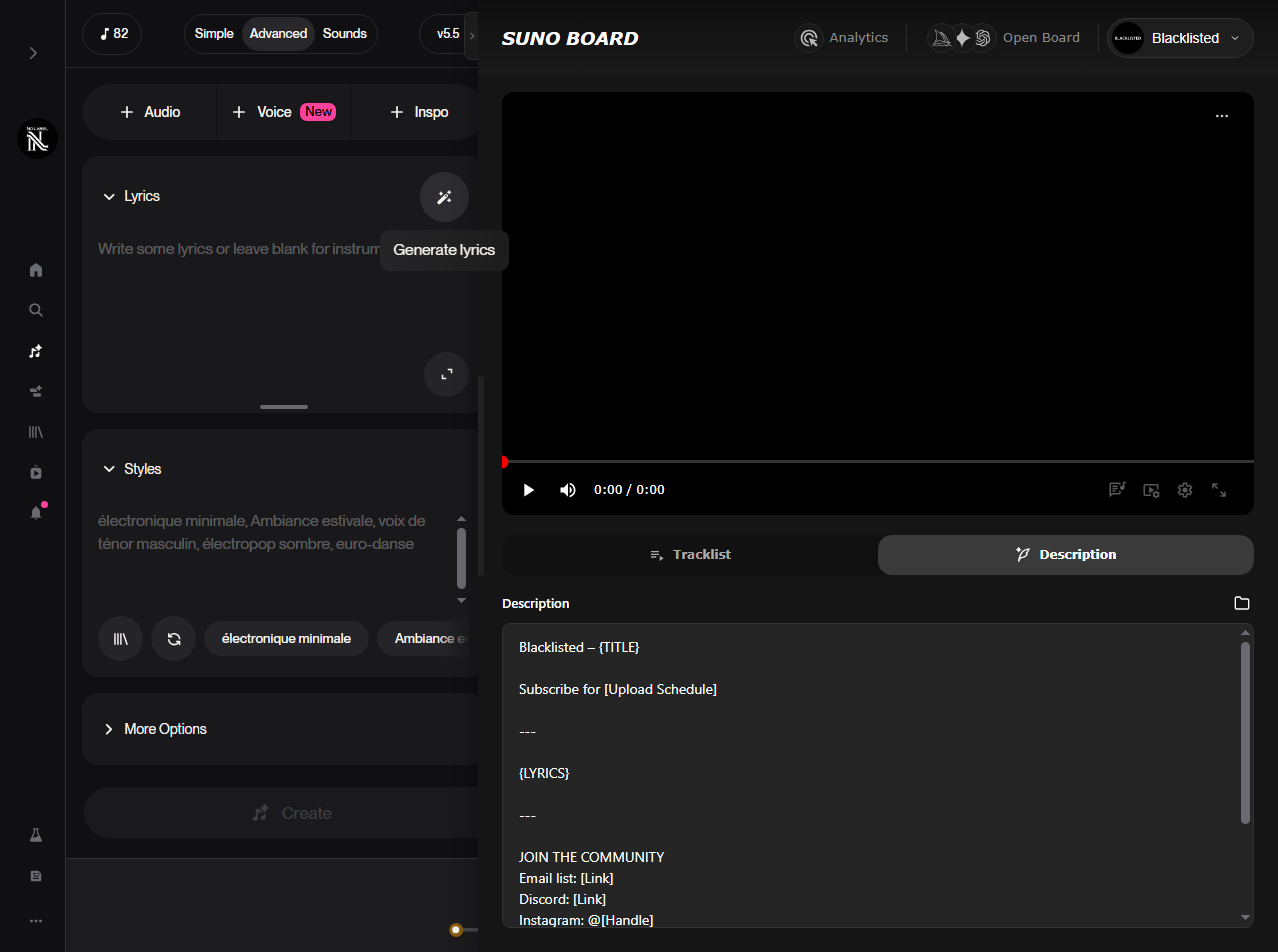
The Suno Board panel open on suno.com with the description tab visible in the video workspace, ready for YouTube music video creation
Suno Board 패널은 suno.com에서 열리고 비디오 작업 공간에 설명 탭이 표시됩니다.
2

비디오 섹션을 열고 노래를 드래그 앤 드롭하세요

비디오 섹션을 클릭한 다음 YouTube에서 바로 사용할 수 있는 뮤직 비디오로 만들고 싶은 트랙을 작업 공간으로 직접 드래그하면 비디오 패널에서 해당 노래와 해당 커버가 로드됩니다.

비디오 섹션을 연 다음 노래를 작업 공간으로 끌어서 비디오 패널에 로드합니다.
3

트랙리스트를 만들어

여러 곡을 작업 공간에 놓아 전체 트랙 목록 비디오를 만드세요. 트랙 목록은 노래 순서를 제어하고 YouTube 챕터의 소스가 됩니다.
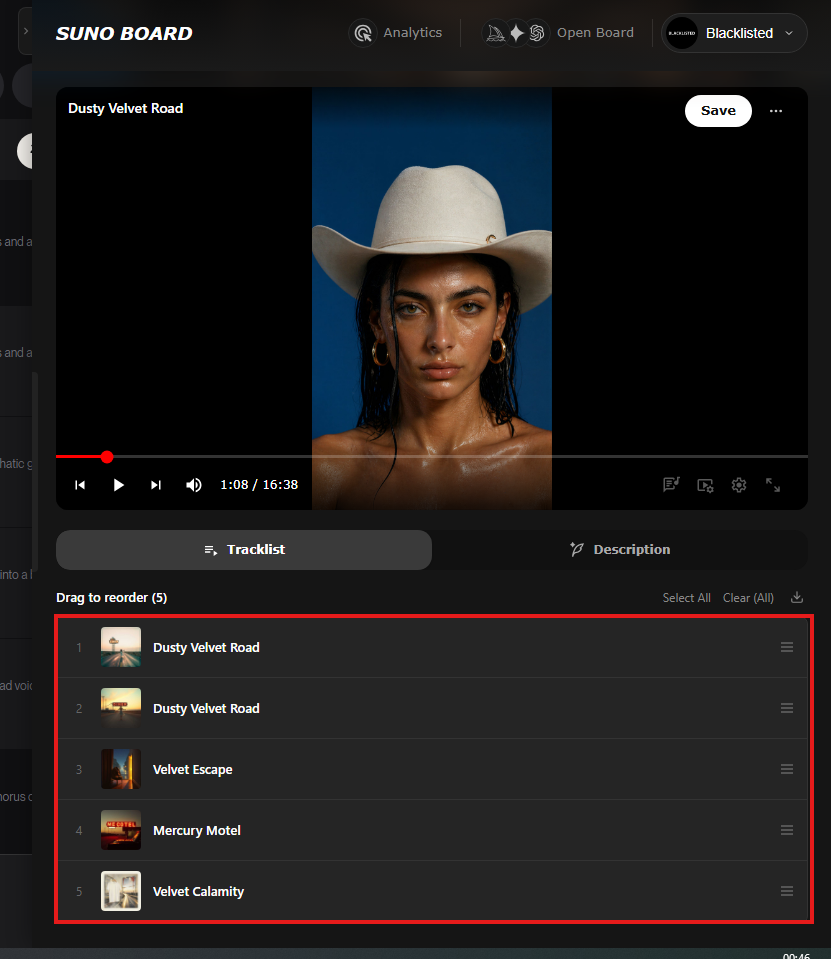
Suno Board tracklist view showing multiple songs added to a single YouTube music video project
4

보드에서 자산 생성

보드 내에서 AI 생성 이미지를 생성하고 플레이어에 추가하면 비디오에 빈 업로드 대신 게시 가능한 영상이 포함됩니다.
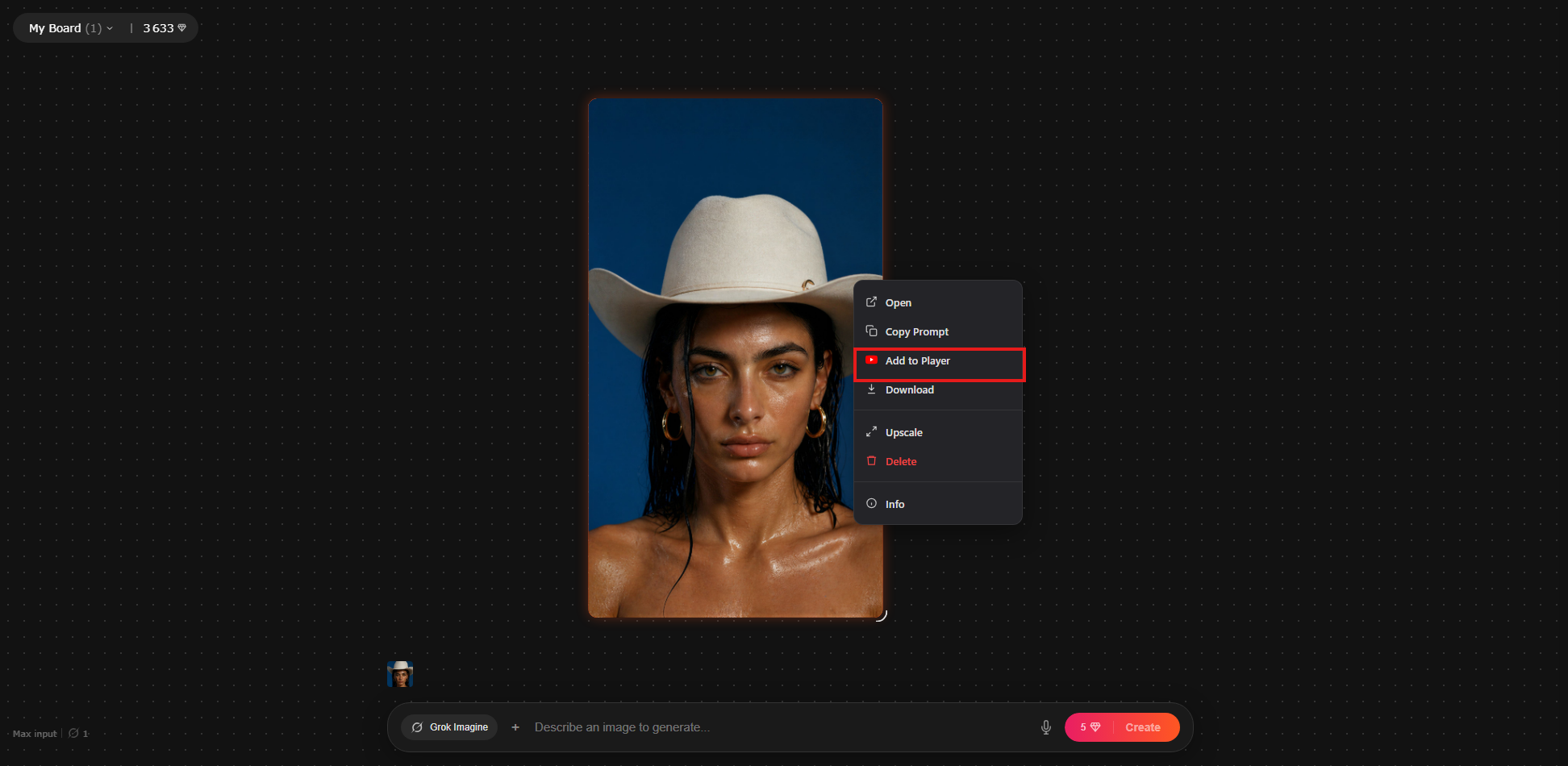
Suno Board image workspace with Add to Player highlighted for adding an AI-generated image to a YouTube music video
5

가사 또는 시각화 도구 추가

가사, 시각화 도구 또는 둘 다 중에서 릴리스에 맞는 비디오 레이어를 선택하세요. 노래를 작업 공간으로 드래그하기 전에 Suno에 표시되면 가사를 포함할 수 있습니다.
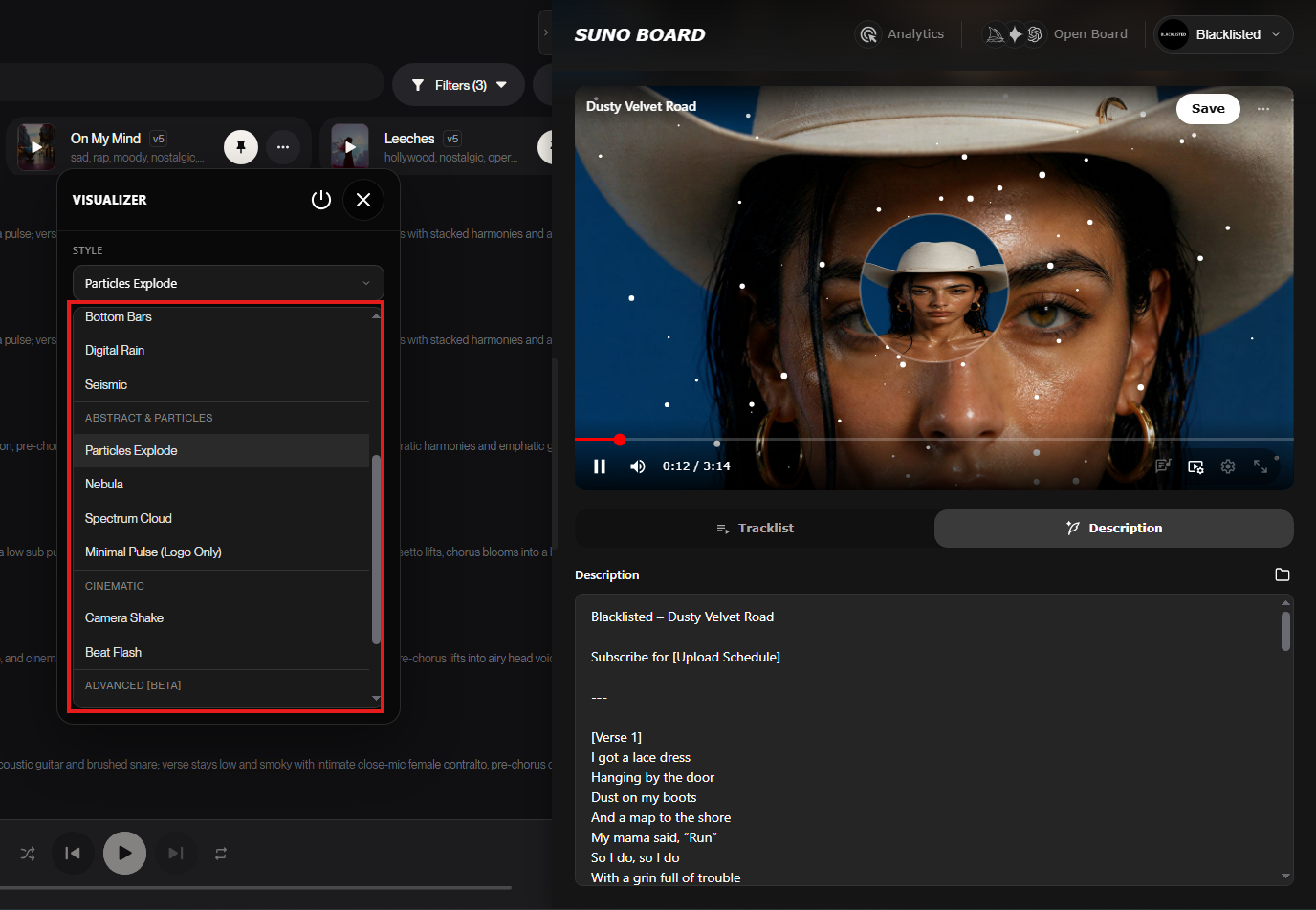
Suno Board visualizer settings open with visualizer styles highlighted beside the video preview
6

YouTube 설명을 생성하세요

설명탭을 열어 자동 챕터가 포함된 YouTube용 설명을 생성하세요. 트랙 목록에서 노래 순서를 바꾸면 Suno Board가 챕터 ��서와 타임스탬프를 자동으로 업데이트합니다. 가사를 포함하려면 먼저 Suno에서 가사를 열어서 볼 수 있도록 한 다음 노래를 비디오 작업 공간으로 끌어다 놓습니다.
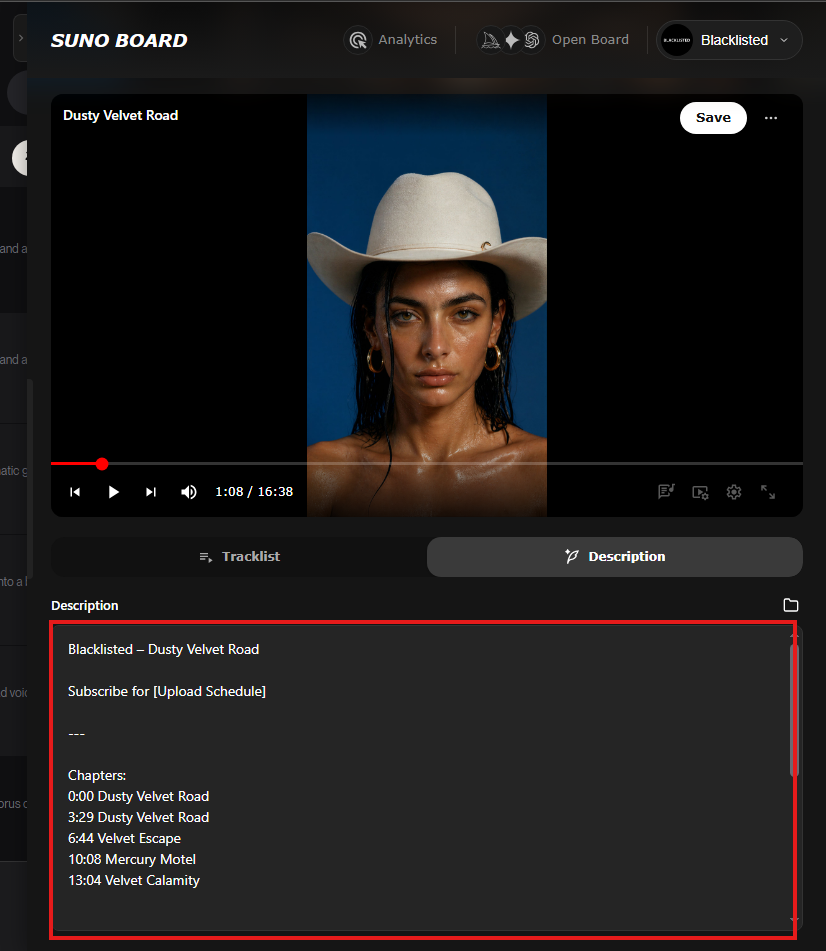
Suno Board Description tab showing a YouTube-ready description with automatic chapter timestamps
7

비디오 다운로드

동영상 다운로드을 클릭하세요. 1920x1080 MP4는 원본 Suno 오디오가 최종 파일로 다중화되어 YouTube에 업로드할 준비가 된 상태로 기기에 다운로드됩니다.
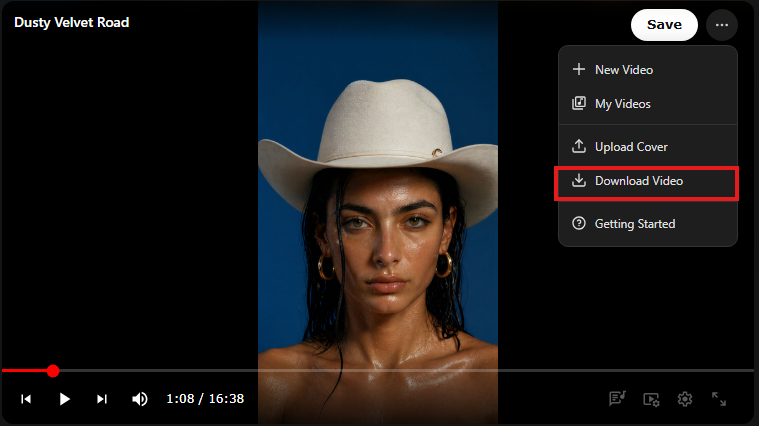
Suno Board Download Video option highlighted for downloading the finished YouTube-ready MP4

Suno Board가 하는 일 — 그리고 아직도 수동으로 하는 일

Suno 보드 핸들

  • 트랙에서 비디오 파일 만들기
  • YouTube 설명 및 타임스탬프 생성
  • 트랙 목록 및 자동 챕터 마커 만들기
  • 브라우저에서 오디오 및 비디오 작업 흐름 유지

넌 수동으로 해

  • YouTube 스튜디오를 통해 내보낸 MP4 업로드
  • 제목, 태그, 미리보기 이미지 설정
  • YouTube 스튜디오에서 AI 콘텐츠 공개 상자를 확인하세요
  • 동영상 게시

Suno Board는 현재 귀하의 YouTube 채널에 직접 게시하지 않습니다.

Suno Board가 YouTube를 위해 제공하는 것

30fps에서 1920×1080 MP4

풀 HD — YouTube의 표준 뮤직 비디오 형식

4가지 렌더링 모드

시각화 장치, 가사, 둘 다 또는 정적 배경

캔버스에 AI가 생성한 시각적 자료

비주얼라이저와 함께 폴라로이드 스타일의 이미지 레이아웃

트랙 목록 + 자동 YouTube 챕터

여��� 트랙 추가 - 타임스탬프가 자동으로 생성됨

YouTube 설명 생성기

AI 공개를 통해 미리 작성된, 붙여넣기 가능한 설명

브라우저에서 완전히 실행됩니다

비디오 렌더링은 장치에 유지됩니다. Suno Board에 업로드할 필요가 없습니다

Suno 라이브러리와 직접 작동

수동으로 파일을 가져올 필요가 없습니다. 트랙이 이미 거기에 있습니다

비디오 편집 소프트웨어가 ��습니다

타임라인 없음, 키프레임 없음, 설치 없음 — 원클릭 내보내기

일반적인 문제 및 수정 사항

"내 동영상이 정지된 이미지처럼 보입니다."

아마도 정적 렌더링 모드를 선택했을 것입니다. 비디오 전체에 모션을 추가하려면 보드 도구 모음에서 시각화 도우미 또는 가사 + 시각화 도우미로 전환하세요.

"YouTube에 챕터가 표시되지 않습니다."

YouTube에는 최소 3개의 타임스탬프가 필요하며 첫 번째 타임스탬프는 00:00이어야 합니다. 자동 생성된 설명에 3개 이상의 장 항목이 있고 00:00이 장 섹션의 첫 번째 줄인지 확인하세요.

"YouTube에서 내가 선택하지 않은 AI 라벨을 추가하고 있습니다."

YouTube는 AI 콘텐츠를 자동으로 감지합니다. YouTube 스튜디오에서 '변경된 콘텐츠 또는 합성 콘텐츠' 상자를 직접 확인하세요. 변경되거나 합성된 콘텐츠가 올바르게 공개되지 않은 경우 YouTube에서 라벨을 적용하거나 조치를 취할 수 있으므로 업로드 중에 이 단계를 검토하는 것이 더 안전한 접근 방식입니다.

"모바일에서는 영상이 잘못 보이는데요"

Suno Board는 16:9 가로 비디오(1920×1080)를 내보냅니다. 이는 YouTube에 적합합니다. 시청자가 휴대전화를 세로 모드로 회전하면 모바일에서 레터박스가 표시됩니다. 이는 가로 동영상에서 예상되는 동작입니다.

"Shorts용 세로 동영상을 원합니다"

Suno Board의 표준 내보내기는 가로 1920×1080입니다. YouTube Shorts(9:16 세로)의 경우 업로드 후 YouTube에 내장된 자르기 도구를 사용하거나 세로 워크플로 옵션에 대한Suno에서 TikTok으로의 가이드를 참조하세요.

개인정보 보호 및 렌더링

Suno Board는 최종 비디오를 브라우저에서 완전히 렌더링합니다. 귀하의 Suno 오디오는 Suno Board 서버에 업로드되지 않습니다. Board 워크플로우의 일부로 지원되는 모델 제공자를 통해 AI 비주얼을 생성하기로 선택한 경우 해당 요청은 선택한 제공자에 의해 처리됩니다. 즉, 오디오는 비디오 제작 프로세스 전반에 걸쳐 로컬로 유지됩니다. 내보낸 MP4는 YouTube에 직접 업로드할 때까지 기기에 저장됩니다.

대신 TikTok, Reels 또는 Shorts에 게시하고 싶으신가요?

유튜브는 수평적이다. 짧은 형식의 플랫폼은 세로 길이가 9:16입니다. 세로형 비디오 워크플로에 대해서는Suno에서 TikTok으로의 가이드 →를 읽어보세요.

Suno Board와 잘 어울리는 YouTube 형식

싱글 트랙 뮤직 비디오

Suno 노래 한 곡, 비디오 한 곡 — 처음부터 끝까지 시각화 도우미 및 가사

Lofi / 라디오 편집

10~20개 트랙, 트랙 목록 보기, 자동 챕터 — 45분 YouTube 세션

앨범 또는 EP 출시

개별 트랙 챕터가 포함된 하나의 동영상에 전체 앨범

AI 예술 + 음악 하이브리드

AI가 생성한 영상과 Suno 오디오를 하나의 비디오에 함께 담았습니다

장르 쇼케이스

동일한 장르의 여러 트랙 — 발견에 이상적

가사 영상

가사 전용 모드 — 어두운 배경이나 사용자 정의 배경에 깨끗한 텍스트

기분/공부 재생목록

긴 형식의 주변 편집 — YouTube에서 인기 있는 검색 형식

채널 예고편

새로운 방문자를 위한 최고의 Suno 트랙을 소개하는 짧은 모음집

YouTube 뮤직 비디오의 시각적 스타일

YouTube music video visualizer style preview in Suno Board

시각화 도구만

깨끗한 오디오 반응형 파형. 어두운 배경, 최소한의 디자인 — 모든 장르에 적합합니다.
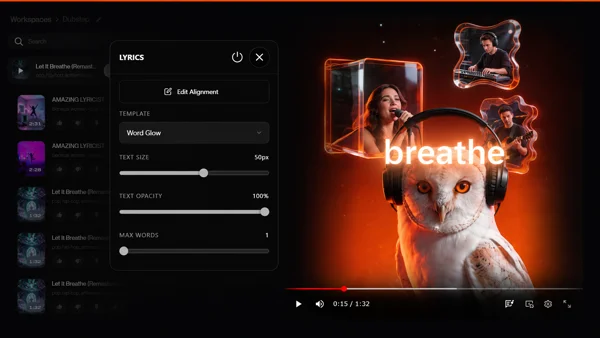
Lyrics only music video style preview in Suno Board

가사만

텍스트 전달 레이아웃. 배경에 가사 오버레이 - 단어가 많은 트랙에 적합합니다.
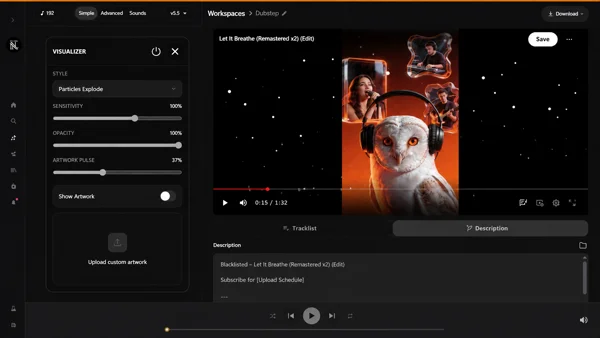
Lyrics and visualizer music video style preview in Suno Board

가사 + 시각화 장치

전체 생산모습. 두 요소 모두 활성화되어 전체적으로 시각적 참여가 극대화됩니다.

AI-generated Polaroid images music video style preview in Suno Board

AI가 만든 폴라로이드 이미지

지원되는 모델 제공자의 삽화가 캔버스에 배열되어 있습니다.

Static visual music video style preview in Suno Board

정적 시각적

나만의 배경 이미지가 프레임을 채웁니다. 모션용 시각화 장치와 페어링합니다.
Tracklist view music video style preview in Suno Board

트랙목록 보기

트랙 목록이 보이는 다중 노래 레이아웃 - 편집 및 앨범 비디오에 적합합니다.

자주 묻는 질문

Can I upload Suno music videos to YouTube?
Yes. Suno Board exports an MP4 file to your device. You can upload that file to YouTube through YouTube Studio like any other video. Navigate to YouTube Studio → Create → Upload video, select the exported MP4, and proceed through the upload flow.
Do I need commercial rights from Suno to post on YouTube?
Suno Pro and Premier subscribers receive commercial rights under Suno's terms of service, allowing them to distribute and monetize their AI-generated tracks on platforms including YouTube. Free-tier Suno users should review Suno's current licensing terms before publishing or monetizing their tracks publicly.
How do I label AI content on YouTube?
In YouTube Studio, during the upload flow, go to the Content section and check the box that says "This video contains altered or synthetic content." Use this disclosure when your AI-generated audio or visuals could seem realistic or meaningfully synthetic to viewers. For clearly stylized, abstract, or unrealistic content, YouTube's requirements may differ — but proactive transparency is still the safer habit. Also add a written disclosure line in your description. YouTube may apply labels or take action when altered or synthetic content is not disclosed correctly, so it is better to review this step yourself during upload. YouTube's altered or synthetic content rules can change — always check the current guidance in YouTube Studio before publishing.
Does Suno Board directly upload to YouTube?
No. Suno Board exports an MP4 to your local device. You then upload that file to YouTube yourself through YouTube Studio. Suno Board is not connected to your YouTube account and does not interact with the YouTube API. The upload step is always manual.
What video format should I use for YouTube?
Suno Board exports MP4 at 1920×1080 and 30fps — the standard YouTube format for Full HD music videos. YouTube accepts this natively with no conversion required.
How do I get YouTube chapters with Suno Board?
Add two or more tracks to the Board tracklist. Open the Description tab — timestamps for each track are generated automatically. Paste the full description into your YouTube video description. YouTube will detect the chapter format (00:00 as the first entry, at least three timestamps) and display clickable chapters in the video player automatically.
Can I monetize a Suno music video on YouTube?
Monetization eligibility depends on YouTube's content policies, including standards around original content, reused content, and creative value. Music videos with a visualizer, lyrics overlay, AI-generated visuals, and a structured tracklist add visual creative value beyond bare audio. Suno Pro and Premier subscribers also have the commercial rights from Suno's terms that are typically required before monetizing. YouTube's policies evolve and the final determination is always made by YouTube.
Does Suno Board create a thumbnail for YouTube?
Suno Board does not export a separate thumbnail file. The most common approach is to pause the Board preview at a visually strong frame and take a screenshot, or to use an AI-generated image from the canvas. YouTube also offers three auto-generated thumbnail options from the video after upload.
What is the difference between uploading audio vs. a music video to YouTube?
YouTube requires a video file for all uploads — audio alone is not accepted. The typical workaround is pairing audio with a static cover image. A full music video with a visualizer, lyrics overlay, and visual art gives viewers something to engage with throughout the entire runtime, while a static image gives viewers nothing to watch beyond the moment the track starts.
Will YouTube flag my Suno video as AI content automatically?
YouTube uses automated detection for synthetic and AI-altered content and may apply a label even if you do not disclose. YouTube may also apply labels or take action when altered or synthetic content is not disclosed correctly. Checking the "altered or synthetic content" box yourself in YouTube Studio during upload is the recommended approach. YouTube's disclosure rules can change — always review the current guidance in YouTube Studio before publishing.
Can I make a compilation of multiple Suno songs for YouTube?
Yes. Add multiple tracks to the Suno Board tracklist, preview the compilation in the Board canvas, and export as a single MP4. The Description tab generates timestamps for each track automatically. This is the fastest way to create long-form compilation videos and album releases for YouTube.
How long does it take to go from a Suno track to a YouTube upload?
For a single-track video: roughly 3–5 minutes in the Board to set up, preview, and export — plus YouTube's upload and processing time, which varies by video length. For a multi-song compilation, add a few extra minutes to build the tracklist and review the auto-generated description before uploading.

지금 Suno 트랙을 YouTube 동영상으로 바꿔보세요

Suno Board를 설치하고 Board 작업 공간을 열고 몇 분 만에 첫 번째 1920×1080 뮤직 비디오를 무료로 내보낼 수 있습니다.

Install Suno Board — free to install

Chrome 웹 스토어 · 계정이 필요하지 않습니다

관련 가이드