指南 · YouTube

如何将 Suno 歌曲变成 YouTube 音乐视频:一步一步

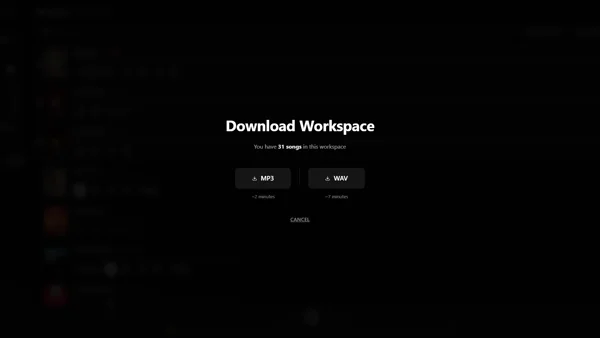
您可以在大约五分钟内从 Suno 曲目转变成可在 YouTube 上播放的音乐视频。打开 Suno,单击 Suno Board 图标,打开视频部分,将歌曲放入工作区,添加视觉效果、歌词或可视化工具,生成 YouTube 描述,然后下载 1920×1080 MP4。无需视频编辑器。

Install Suno Board — free to install
Suno Board landscape video canvas for a YouTube-ready Suno music video

最适合

Suno creators starting or growing a YouTube channel
AI music creators uploading their first real music video
Creators building compilation or album-style videos
Anyone who wants auto-generated YouTube chapters and descriptions
Creators who want automatic YouTube chapters from their tracklist
Musicians experimenting with AI visuals and audio together
Suno Board

由 Suno Board 团队撰写

Suno Board 专为 Suno 创作者社区打造。本指南反映了 Suno Board Chrome 扩展程序内的实际视频下载工作流程 - 针对创作者每天用来为 YouTube 准备 Suno 歌曲的视频工作区进行了测试。

为什么音乐视频在 YouTube 上的表现优于纯音频

YouTube 需要视频文件 - 您不能单独上传音频。标准解决方法是将音频与静态封面图像配对。这确实有效,但静态图像让观众没有什么可看的。可视化工具会对节拍、屏幕上出现的歌词或填充框架的人工智能生成的艺术作品做出反应,让观众有理由在整个运行过程中停留。

观看时长和观看者留存率是衡量视频在 YouTube 上表现如何的主要指标。与静态图像相比,具有动作、歌词和视觉结构的视频给观众更多的理由继续观看。 Suno Board 缩小了拥有出色的 Suno 曲目和值得观看的 YouTube 视频之间的差距。

使用 Suno Board 上传音频与音乐视频

特点 音频 + 静态图像 与 Suno 板
上传格式 音频文件+静态图片 准备上传 MP4
播放期间的视觉运动 仅静态图像 动态展示台和/或歌词
音频反应可视化器
歌词叠加
YouTube 章节 手动时间戳 从曲目列表自动生成
YouTube 描述 从头开始写 Suno Board 生成的模板
多歌曲曲目列表视频 需要手动编辑 内置曲目列表模式
直接使用您的 Suno 曲目
准备上传 时间到了30–60 分钟 只需几分钟,而不是完整的编辑会话

如何将 Suno 歌曲变成 YouTube 音乐视频:一步一步

7 个步骤 — 从 Suno 曲目到 YouTube 就绪的 MP4

1

访问 suno.com/create 或您的 Suno 库

Suno Board 仅在这些页面上激活 - 面板和所有工具不会出现在 Suno 的其他任何位置。
Suno Board icon in the Chrome toolbar — click it to open the panel
Chrome 工具栏中的 Suno Board 图标 — 单击它可打开面板。
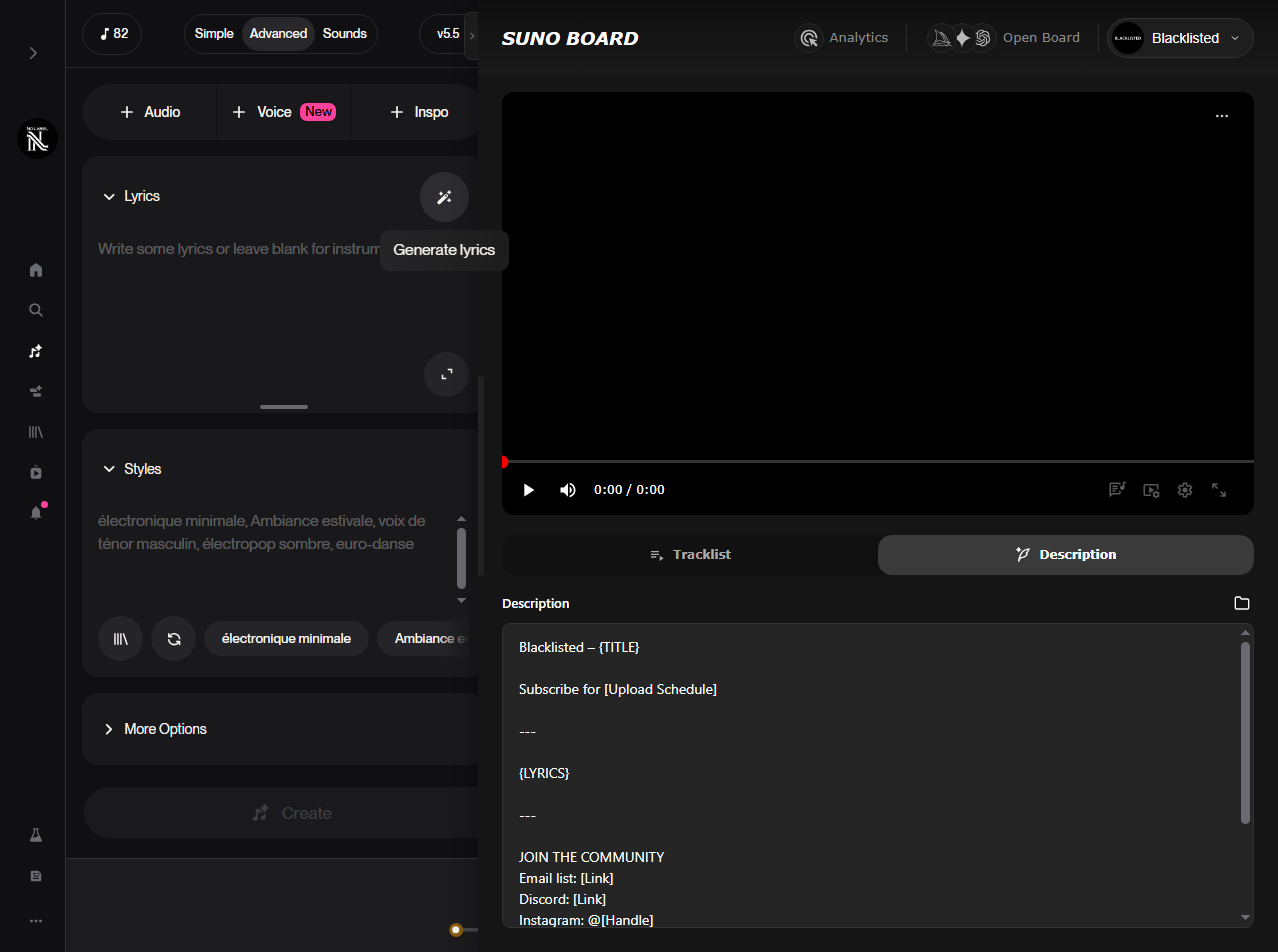
The Suno Board panel open on suno.com with the description tab visible in the video workspace, ready for YouTube music video creation
Suno Board 面板在 suno.com 上打开,并在视频工作区中显示描述选项卡。
2

打开视频部分并拖放歌曲

单击进入视频部分,然后将要转换为 YouTube 就绪音乐视频的曲目直接拖到工作区中,以便视频面板加载该歌曲及其封面。

打开视频部分,然后将歌曲拖到工作区中以将其加载到视频面板中。
3

建立曲目列表

将多首歌曲放入工作区以构建完整的曲目列表视频。曲目列表控制歌曲顺序并成为 YouTube 章节的来源。
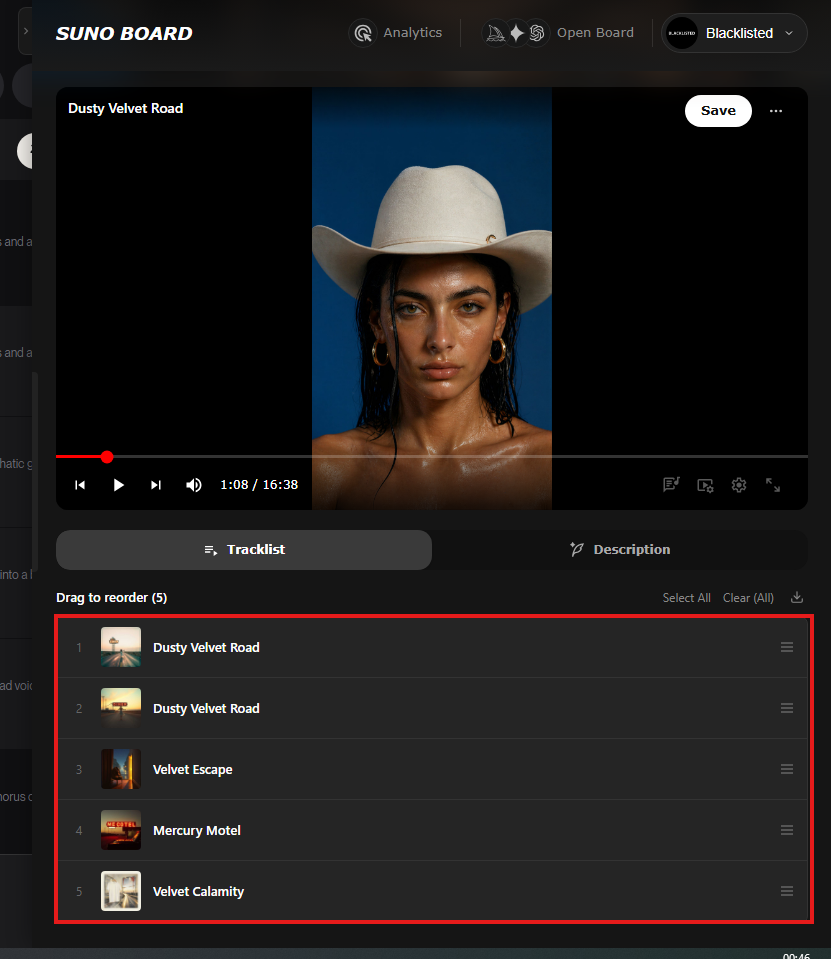
Suno Board tracklist view showing multiple songs added to a single YouTube music video project
4

从董事会生成资产

在看板内创建 AI 生成的图像并将其添加到播放器,以便视频具有可发布的视觉效果,而不是空白上传。
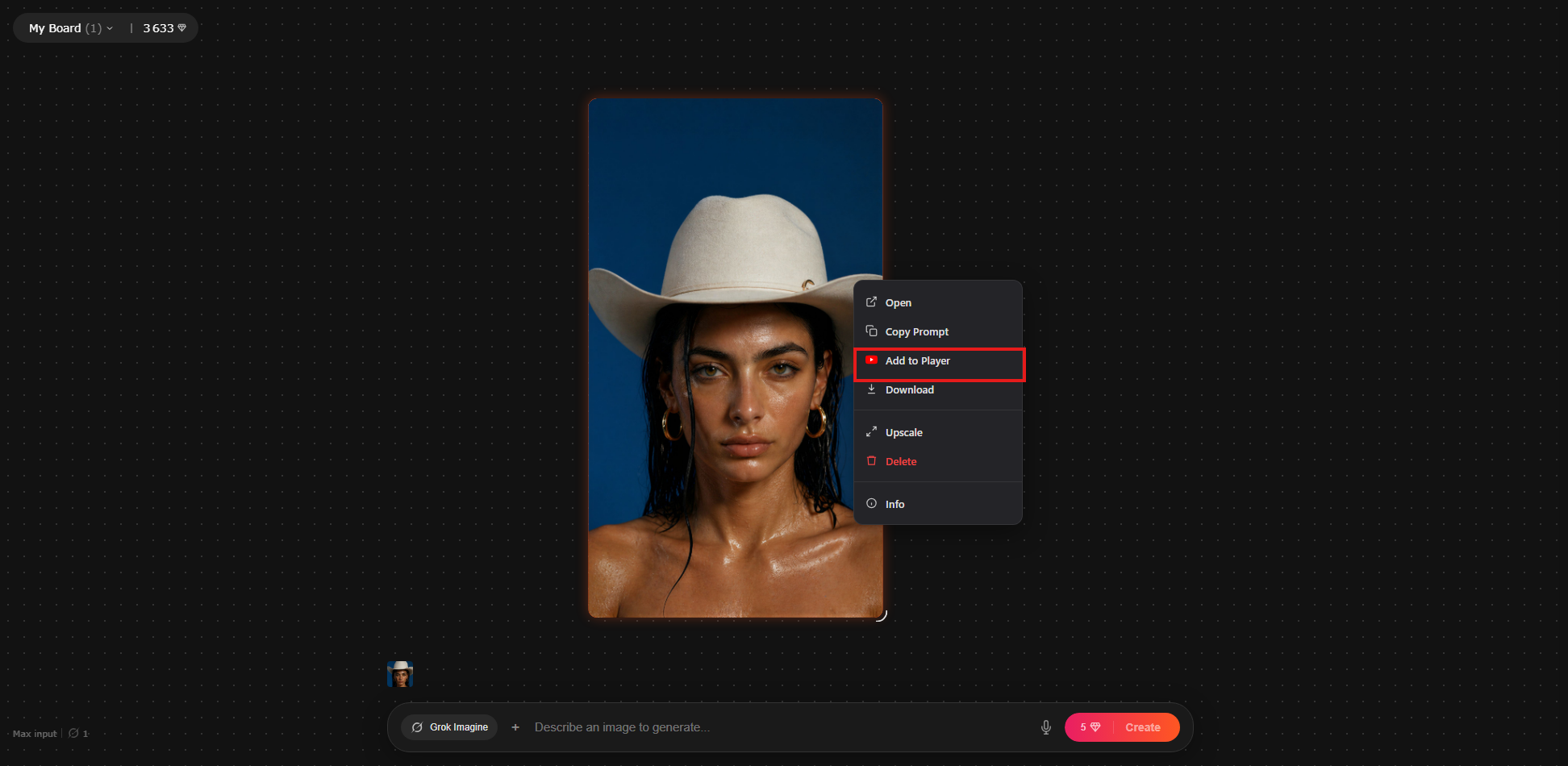
Suno Board image workspace with Add to Player highlighted for adding an AI-generated image to a YouTube music video
5

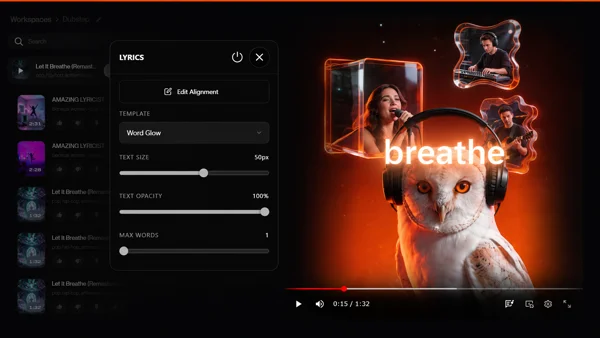
添加歌词或可视化工具

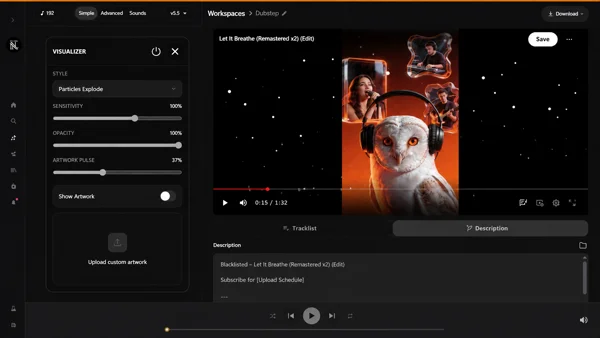
选择适合该版本的视频层:歌词、可视化工具或两者。在将歌曲拖到工作区之前,如果歌词在 Suno 上可见,则可以将其包含在内。
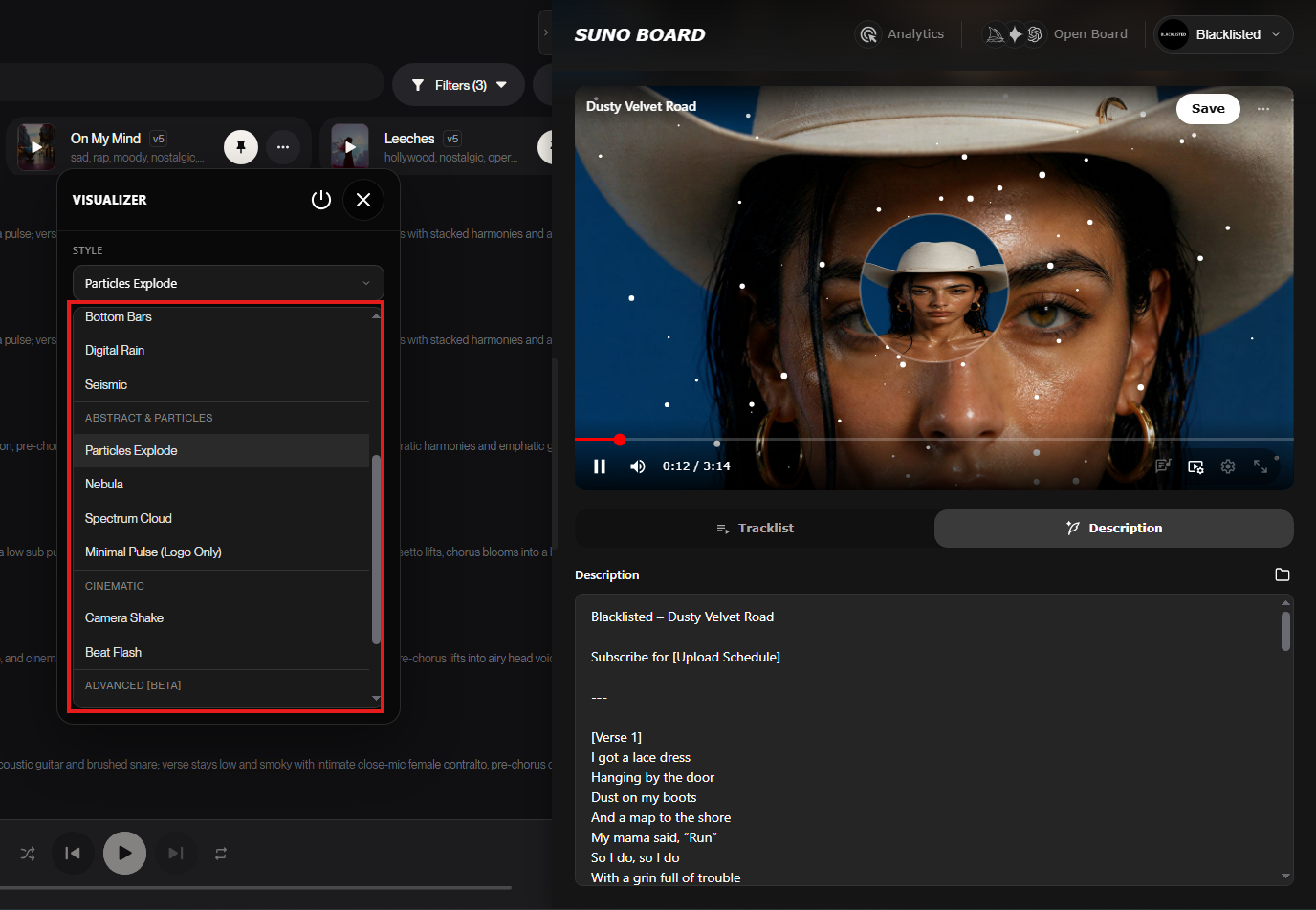
Suno Board visualizer settings open with visualizer styles highlighted beside the video preview
6

生成 YouTube 描述

打开说明选项卡可生成包含自动章节的 YouTube 就绪说明。如果您对曲目列表中的歌曲重新排序,Suno Board 会自动更新章节顺序和时间戳。如果您想要包含歌词,请先在 Suno 上打开歌词,使其可见,然后将歌曲拖放到视频工作区中。
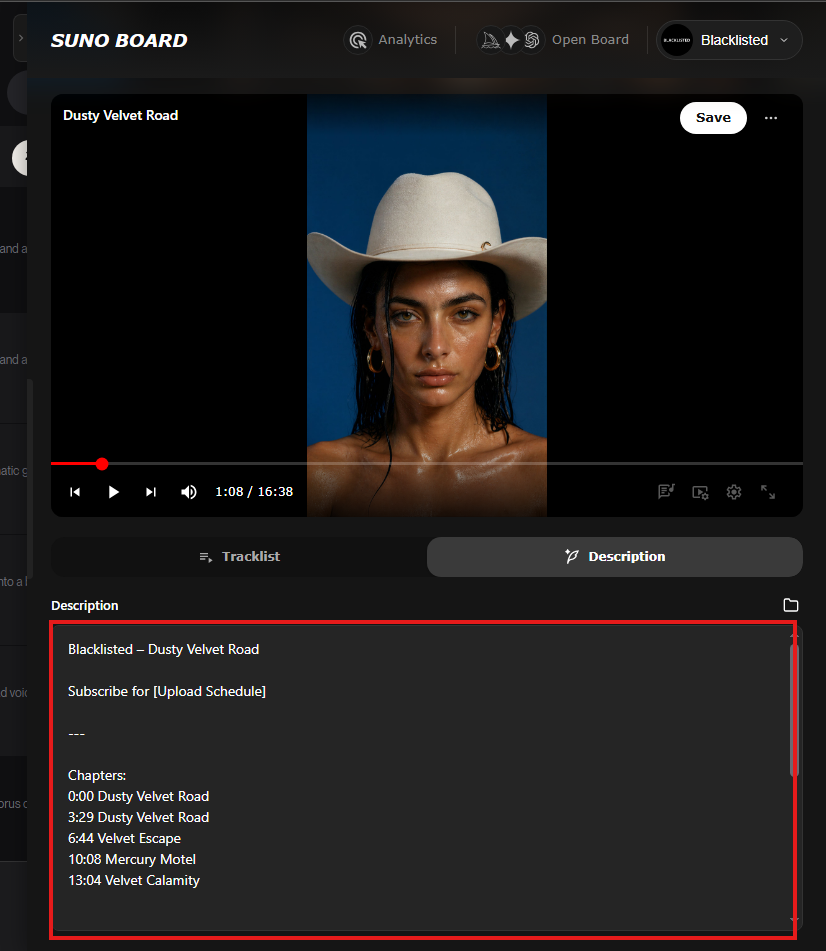
Suno Board Description tab showing a YouTube-ready description with automatic chapter timestamps
7

下载视频

点击下载视频。 1920x1080 MP4 下载到您的设备,并将原始 Suno 音频混合到最终文件中,准备上传到 YouTube。
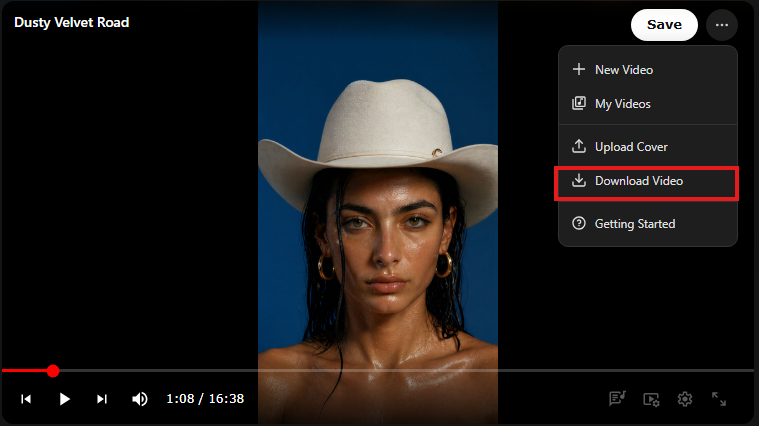
Suno Board Download Video option highlighted for downloading the finished YouTube-ready MP4

Suno Board 的作用 - 以及您仍然手动执行的操作

Suno 板手柄

  • 从轨道创建视频文件
  • 生成 YouTube 说明和时间戳
  • 构建曲目列表和自动章节标记
  • 将音频和视频工作流程保留在浏览器中

你手动做

  • 通过 YouTube Studio 上传导出的 MP4
  • 设置标题、标签和缩略图
  • 检查 YouTube Studio 中的 AI 内容披露框
  • 发布视频

Suno Board 目前不直接发布到您的 YouTube 频道。

Suno Board 为您提供的 YouTube 服务

1920×1080 MP4 30fps

全高清 — YouTube 的标准音乐视频格式

四种渲染模式

展示台、歌词、两者或静态背景

AI 在画布上生成的视觉效果

与可视化工具一起的宝丽来风格图像布局

曲目列表 + 自动 YouTube 章节

添加多个轨道 - 自动生成时间戳

YouTube 描述生成器

预先编写、可粘贴的描述,带有 AI 披露

完全在您的浏览器中运行

视频渲染保留在您的设备上 — 无需上传到 Suno Board

直接与您的 Suno 库一起使用

无需手动文件导入 - 您的曲目已经在那里

没有视频编辑软件

没有时间线、没有关键帧、没有安装 — 一键导出

常见问题和修复

“我的视频看起来像静态图像”

您可能选择了静态渲染模式。切换到看板工具栏中的“展示台”或“歌词 + 展示台”,以在整个视频中添加动感效果。

“YouTube 上没有出现任何章节”

YouTube 需要至少三个时间戳,第一个必须是 00:00。确保自动生成的描述至少包含三个章节条目,并且 00:00 是章节部分的第一行。

“YouTube 正在添加一个我没有选择的 AI 标签”

YouTube 自动检测 AI 内容。自行在 YouTube Studio 中选中“更改或合成内容”框。当更改或合成内容未正确披露时,YouTube 可能会应用标签或采取行动,因此在上传过程中检查此步骤是更安全的方法。

“视频在手机上看起来有问题”

Suno Board 导出 16:9 水平视频(1920×1080)。这对于 YouTube 来说是正确的。如果观看者将手机旋转到纵向模式,它将在移动设备上显示信箱 - 这是水平视频的预期行为。

“我想要一个 Shorts 竖屏视频”

Suno Board的标准输出是1920×1080水平。对于 YouTube Shorts(9:16 垂直),上传后使用 YouTube 的内置裁剪工具,或参阅我们的Suno 到 TikTok 指南了解垂直工作流程选项。

隐私和渲染

Suno Board 完全在您的浏览器中呈现最终视频。您的 Suno 音频永远不会上传到 Suno Board 的服务器。如果您选择通过受支持的模型提供商生成 AI 视觉效果作为 Board 工作流程的一部分,这些请求将由所选提供商处理 - 您的音频在整个视频创建过程中保持本地状态。导出的 MP4 会一直保存在您的设备上,直到您自己将其上传到 YouTube。

想要在 TikTok、Reels 或 Shorts 上发帖吗?

YouTube 是横向的。短平台的垂直高度为 9:16。阅读Suno 到 TikTok 指南 →了解垂直视频工作流程。

与 Suno Board 配合良好的 YouTube 格式

单轨音乐视频

一首 Suno 歌曲,一个视频 — 从头到尾的可视化和歌词

Lofi / 广播汇编

10–20 首曲目、曲目列表视图、自动章节 — 45 分钟的 YouTube 会话

专辑或 EP 发行

完整专辑包含在一个视频中,包含单独的曲目章节

AI艺术+音乐混合

AI 生成的视觉效果和 Suno 音频一起在一个视频中

类型展示

同一流派的多首曲目 - 非常适合发现

歌词视频

纯歌词模式 — 深色或自定义背景上的干净文本

心情/学习播放列表

长格式环境编译 — YouTube 上流行的搜索格式

频道预告片

为新访客展示您最好的 Suno 曲目的简短汇编

YouTube 音乐视频的视觉风格

YouTube music video visualizer style preview in Suno Board

仅展示台

干净的音频反应波形。深色背景,简约设计——适用于任何类型。

Lyrics only music video style preview in Suno Board

仅歌词

文本向前布局。歌词叠加在背景上 — 非常适合单词较多的曲目。

Lyrics and visualizer music video style preview in Suno Board

歌词+可视化

完整的生产外观。这两个元素都很活跃——贯穿始终的最大视觉参与度。

AI-generated Polaroid images music video style preview in Suno Board

AI 生成的宝丽来图像

来自支持的模型提供商的插图艺术作品排列在画布上。

Static visual music video style preview in Suno Board

静态视觉

您自己的背景图像填充框架。与运动可视化器配对。

Tracklist view music video style preview in Suno Board

曲目列表视图

具有可见曲目列表的多歌曲布局 - 非常适合合辑和专辑视频。

常见问题

Can I upload Suno music videos to YouTube?
Yes. Suno Board exports an MP4 file to your device. You can upload that file to YouTube through YouTube Studio like any other video. Navigate to YouTube Studio → Create → Upload video, select the exported MP4, and proceed through the upload flow.
Do I need commercial rights from Suno to post on YouTube?
Suno Pro and Premier subscribers receive commercial rights under Suno's terms of service, allowing them to distribute and monetize their AI-generated tracks on platforms including YouTube. Free-tier Suno users should review Suno's current licensing terms before publishing or monetizing their tracks publicly.
How do I label AI content on YouTube?
In YouTube Studio, during the upload flow, go to the Content section and check the box that says "This video contains altered or synthetic content." Use this disclosure when your AI-generated audio or visuals could seem realistic or meaningfully synthetic to viewers. For clearly stylized, abstract, or unrealistic content, YouTube's requirements may differ — but proactive transparency is still the safer habit. Also add a written disclosure line in your description. YouTube may apply labels or take action when altered or synthetic content is not disclosed correctly, so it is better to review this step yourself during upload. YouTube's altered or synthetic content rules can change — always check the current guidance in YouTube Studio before publishing.
Does Suno Board directly upload to YouTube?
No. Suno Board exports an MP4 to your local device. You then upload that file to YouTube yourself through YouTube Studio. Suno Board is not connected to your YouTube account and does not interact with the YouTube API. The upload step is always manual.
What video format should I use for YouTube?
Suno Board exports MP4 at 1920×1080 and 30fps — the standard YouTube format for Full HD music videos. YouTube accepts this natively with no conversion required.
How do I get YouTube chapters with Suno Board?
Add two or more tracks to the Board tracklist. Open the Description tab — timestamps for each track are generated automatically. Paste the full description into your YouTube video description. YouTube will detect the chapter format (00:00 as the first entry, at least three timestamps) and display clickable chapters in the video player automatically.
Can I monetize a Suno music video on YouTube?
Monetization eligibility depends on YouTube's content policies, including standards around original content, reused content, and creative value. Music videos with a visualizer, lyrics overlay, AI-generated visuals, and a structured tracklist add visual creative value beyond bare audio. Suno Pro and Premier subscribers also have the commercial rights from Suno's terms that are typically required before monetizing. YouTube's policies evolve and the final determination is always made by YouTube.
Does Suno Board create a thumbnail for YouTube?
Suno Board does not export a separate thumbnail file. The most common approach is to pause the Board preview at a visually strong frame and take a screenshot, or to use an AI-generated image from the canvas. YouTube also offers three auto-generated thumbnail options from the video after upload.
What is the difference between uploading audio vs. a music video to YouTube?
YouTube requires a video file for all uploads — audio alone is not accepted. The typical workaround is pairing audio with a static cover image. A full music video with a visualizer, lyrics overlay, and visual art gives viewers something to engage with throughout the entire runtime, while a static image gives viewers nothing to watch beyond the moment the track starts.
Will YouTube flag my Suno video as AI content automatically?
YouTube uses automated detection for synthetic and AI-altered content and may apply a label even if you do not disclose. YouTube may also apply labels or take action when altered or synthetic content is not disclosed correctly. Checking the "altered or synthetic content" box yourself in YouTube Studio during upload is the recommended approach. YouTube's disclosure rules can change — always review the current guidance in YouTube Studio before publishing.
Can I make a compilation of multiple Suno songs for YouTube?
Yes. Add multiple tracks to the Suno Board tracklist, preview the compilation in the Board canvas, and export as a single MP4. The Description tab generates timestamps for each track automatically. This is the fastest way to create long-form compilation videos and album releases for YouTube.
How long does it take to go from a Suno track to a YouTube upload?
For a single-track video: roughly 3–5 minutes in the Board to set up, preview, and export — plus YouTube's upload and processing time, which varies by video length. For a multi-song compilation, add a few extra minutes to build the tracklist and review the auto-generated description before uploading.

立即将您的 Suno 曲目制作成 YouTube 视频

安装 Suno Board,打开 Board 工作区,并在几分钟内免费导出您的第一个 1920×1080 音乐视频。

Install Suno Board — free to install

Chrome 网上应用店 · 无需帐户

相关指南